// SERVICEM8 EXPORT DATA
ServiceM8 export data: every route out, explained
Yes, you can export your data from ServiceM8. Here is every route: the CSV report exports, the attachment add-ons and the built-in account backup, what each leaves out per ServiceM8's own documentation, and the automatic option when you want the lot.
// WHAT SERVICEM8 GIVES YOU
The three ways to export data from ServiceM8
ServiceM8 ships real export functions and documents them properly. Each covers a different slice of your account, and all three are manual runs. None of them exists because the account is filling up, either: there is no ServiceM8 storage limit on any plan.
Settings, then ServiceM8 Account, then Download account backup. Your jobs, clients, materials and documents in a single download; a few minutes to several hours depending on account size.
The Advanced Reporting Pack add-on adds a Job List export, a CSV of your job history, and a Client List export. Materials export separately under Settings, then Materials.
Store add-ons such as Attachment Download zip up a single job's photos and files. Handy for a handful of jobs; slow going for a history of thousands.
// THE FINE PRINT, FROM THE DOCS
What the exports do not cover
None of this is hidden. ServiceM8 states each of these behaviours plainly in its own help centre; we checked every one on 18 August 2026.
"An account backup can be performed a maximum of once every 24 hours." An on-demand snapshot, not a scheduled backup.
Source: ServiceM8 Help Center, "How to download a backup of your ServiceM8 data"
ServiceM8 describes the account backup as "for reference only": the data "cannot be 'imported' into a new or separate ServiceM8 account". A copy to keep, not a migration path.
Source: ServiceM8 Help Center, "How to download a backup of your ServiceM8 data"
The Job List and Client List "are text-only spreadsheet reports", which "do not include all job-related data, and do not include files such as PDFs, photos or videos".
Source: ServiceM8 Help Center, "What is the Advanced Reporting Pack Add-on?"
Attachment Download is a third-party add-on that zips one job's files at a time, free for up to 5 attachments per job with a paid tier beyond that.
Source: ServiceM8 add-on store, Attachment Download listing
The common thread: every route is a manual, point-in-time run, so tomorrow's completed jobs are not in today's download. Closing that gap is what our ServiceM8 backup build is for. If it is specifically the job photos and videos you need out, that is a different object with different limits, worked through on ServiceM8 photo export. The shape is not unique to ServiceM8 either, and if you are weighing up the other platform we work in most, the same ground on Tradify export data covers a different set of documented limits.
// DO IT YOURSELF
The manual export routine, start to finish
Want a complete export today, at no cost? Four steps. Plenty of businesses run this quarterly and never need more. One thing the routine will not do is thin the account out, because ServiceM8 has no job archive; that is a separate question, answered in how to archive old jobs in ServiceM8.
- Download the account backup. Settings, then ServiceM8 Account, then Download account backup. Allow up to several hours.
- Export the spreadsheets. Enable the Advanced Reporting Pack, then run the Job List and Client List exports. Materials come from Settings, then Materials.
- Pull attachments for any jobs you need as loose files. A store add-on like Attachment Download zips them per job.
- File everything in storage your business owns, such as Google Drive, and diarise the next run: the export is only as current as the last time someone did it.
// THE AUTOMATIC OPTION
When the export should run itself
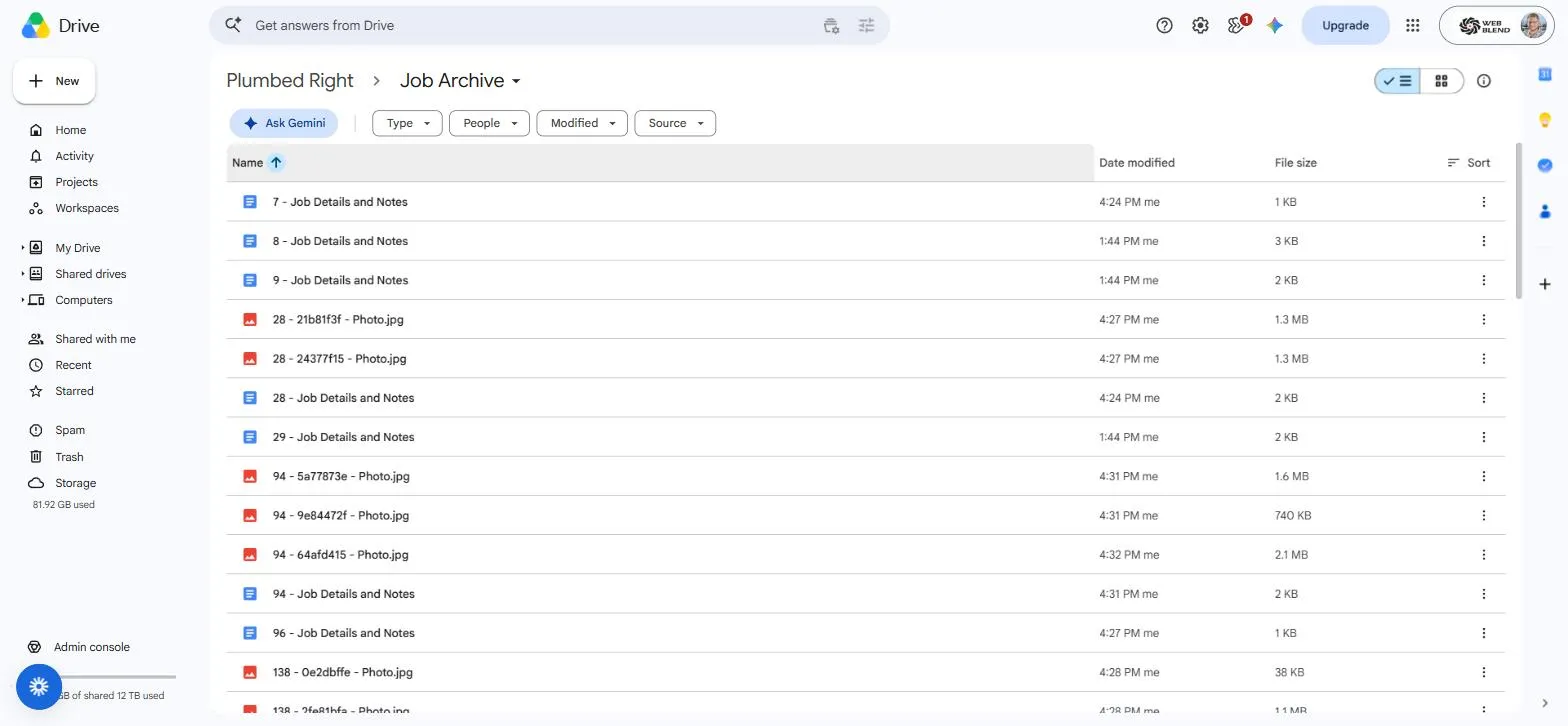
If a quarterly manual run covers you, use the routine above and keep your money. The automatic route is for businesses that want the export always current: our done-for-you ServiceM8 backup archives every completed job into a Google Drive your business owns, details and notes as a readable Doc per job, photos and videos as original files, new jobs landing within 15 minutes. No 24-hour wait, nothing for the office to remember.
It is one of several systems we build around ServiceM8 as a Bronze Partner; the rest live on our ServiceM8 services page.
// QUESTIONS
Straight answers before you ask
Not sure whether the manual routine covers you, or what your export will and will not contain? Ask us directly and we'll give you a straight answer, no jargon, no pressure.
Get in touchCan I export all my data from ServiceM8?
Yes. The built-in account backup collects your jobs, clients, materials and documents into a single download, from Settings, then ServiceM8 Account, then Download account backup. Two documented conditions apply: it can run at most once every 24 hours, and ServiceM8 describes the result as for reference only, meaning it cannot be imported back into a ServiceM8 account. It is a copy to keep, not a restore point.
Can I import my exported ServiceM8 data into another ServiceM8 account?
No. ServiceM8’s help centre states the account backup is for reference only and that the data cannot be imported into a new or separate ServiceM8 account. If you are moving accounts or platforms, plan around the CSV exports for structured data and a proper file archive for photos and documents, rather than counting on a restore.
How do I export my ServiceM8 job history as a spreadsheet?
Enable the Advanced Reporting Pack add-on under Settings, then ServiceM8 Add-ons. It adds a Job List export, a CSV file of your job history, and a Client List export of all your clients. ServiceM8’s documentation notes these are text-only spreadsheet reports: they do not include all job-related data, and they do not include files such as PDFs, photos or videos.
Is exporting my data out of ServiceM8 allowed?
Yes. It is your business data, and ServiceM8 provides and documents the export functions itself: the account backup, the reporting exports and the API. Our automated archive reads through the official ServiceM8 API with a read-only key, so it can copy data out but can never change or delete a job. Web Blend is a ServiceM8 Bronze Partner.
How do I export photos and videos from ServiceM8?
Attachments come out inside the account backup, or one job at a time through a store add-on such as Attachment Download. Getting a whole photo history out is a separate question with its own limits, answered on our ServiceM8 photo export page.
// READY WHEN YOU ARE
Get your data out once, then never think about it again
Tell us roughly how many completed jobs are in your ServiceM8 account and we'll come back with a fixed price for an archive that exports itself. No pressure, no jargon.
Get a quote