

ServiceM8 15 rebuilds the booking window around a whole week view with clear colour coding, and replaces the separate calendar and staff schedule with one unified schedule.
- The booking window now shows a full week at once, coloured white, grey and green for availability.
- You can book a specific staff member, see their real week with travel time, and drag to adjust.
- Booking over another job or outside hours now warns you instead of blocking the save.
- Smart client availability can read job notes like Tuesdays and Thursdays after two automatically.
- The calendar and staff schedule have merged into one schedule with new day, week and month views.
- The full schedule, including drag and drop, now works on iPad, not just a single day view.
Keep asking about it in
Quick answer: ServiceM8 15 rebuilds the booking window so you can see a whole week of availability at once, book a specific staff member with real travel time, and get warnings instead of blocks when you book over another job. It also merges the old calendar and staff schedule into one unified schedule with new views, and brings the full schedule experience to iPad for the first time. This is based on ServiceM8’s launch livestream, so some details may change as the features roll out.
The launch video below is cued to the the new booking window and schedule segment (21:30). It is the source for everything in this post.
What changed in the ServiceM8 15 booking window?
The old booking window suggested times, but if the first suggestion did not suit, it was hard to see what else was free because you could only look at a small slice of the schedule. ServiceM8 15 rebuilds it around the whole week.
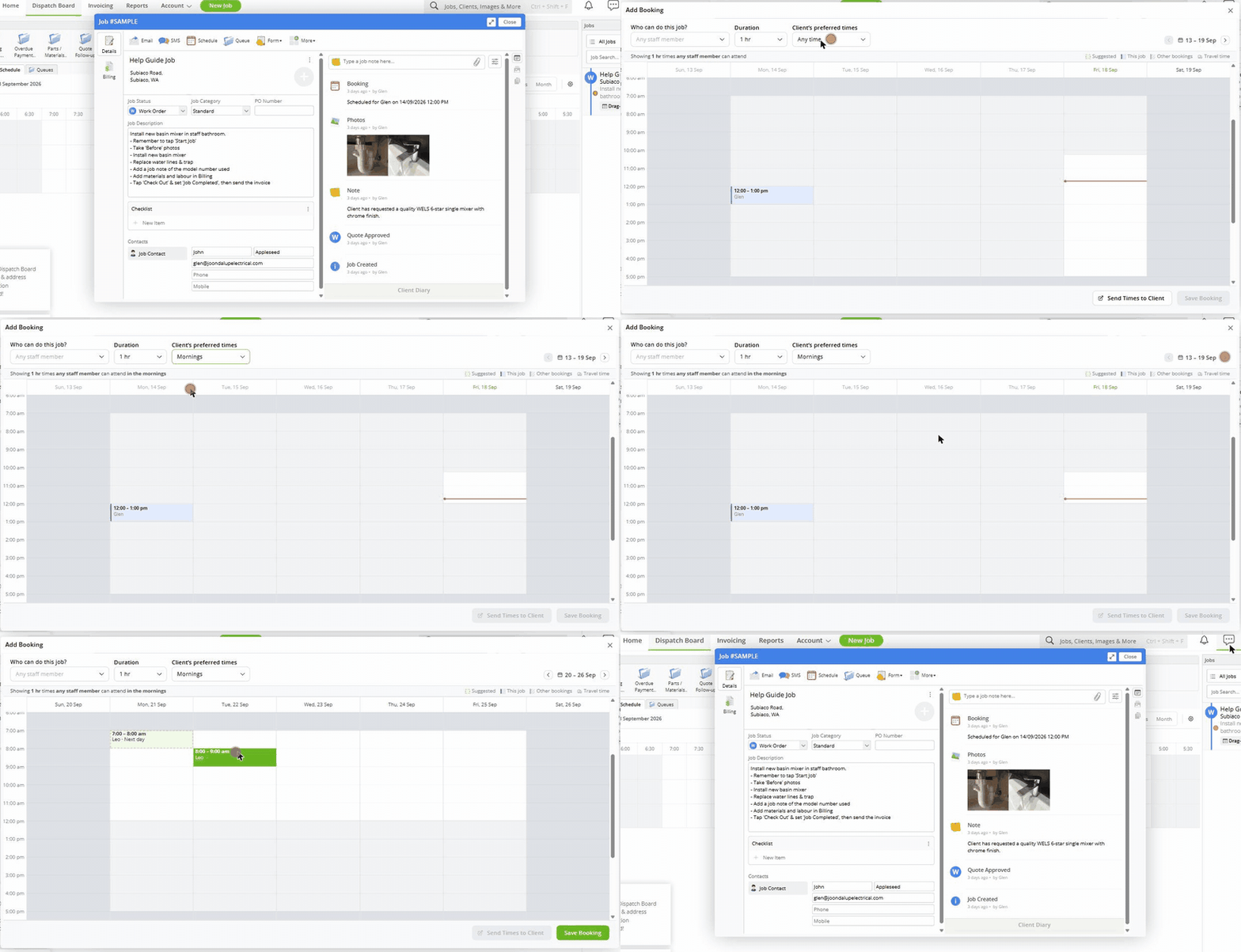
Click schedule from the job card and you see the whole week at a glance. White means someone can do the job, grey means they cannot, and green blocks are ServiceM8’s suggestions. Pick a suggestion, save the booking, and you are done in three clicks, with ServiceM8 choosing both the time and the available staff member.
See the full announcement in the ServiceM8 15 launch recap.
How do you book a specific staff member?
If the job has to go to one person, choose them and the booking window switches to their actual week: real bookings, travel time between them, and genuine gaps when they can attend. The calendar itself is now the input. Click any open space to place a booking, drag it to another time, or resize it and the duration updates with you.
If you place a booking over another job or outside business hours, ServiceM8 does not stop you. It warns you and changes the save button to save anyway, because sometimes you know something the schedule does not. If the time suits but the person does not, change the staff member directly on the booking and ServiceM8 only shows staff who are actually free at that exact time.
How does customer availability work now?
Choose a simple preset, mornings or after three, and the calendar narrows straight to that part of the day. Smart client availability goes a step further. It can read something written in the job notes, such as Tuesdays and Thursdays after two, and apply those days and times automatically.
If you would rather the customer chose, click send times to client to send a booking link where they pick an available time from the options you have set.
How do you book a crew or a multi-day job?
For jobs that need more than one person, select a crew and choose everyone needs to attend. ServiceM8 does the availability maths and narrows the calendar to times that suit the whole crew, and tells you why if there are not enough people free. If only a few specific staff can do a job but you only need one of them, select those staff and choose any one, and the calendar shows times when at least one is free.
For multi-day installs, choose multi-days and select each day the work happens, even when the days are not consecutive. You can book partial days across each date. Every visit is checked against the team’s availability, and saving books the job across all the selected days in one go.
What replaced the separate calendar and staff schedule?
Until now, ServiceM8 had a separate calendar and a separate staff schedule. ServiceM8 15 merges them into one schedule. Day view puts staff in rows with bookings coloured by job status, week by day gives a familiar calendar layout with bookings coloured by staff and a status dot, and month keeps the high level picture of work ahead.
New in the merged schedule: you can customise what shows on each booking card, from job description and suburb through to full address, or keep it minimal. In day view, when bookings overlap, that staff member’s row expands so nothing is hidden. You can show, hide and reorder staff, hide weekends for more room, and see a weather forecast for the coming week. Job allocations are also improved, appearing in every view including calendar style ones, and you can choose whether dragging a job onto the schedule creates a fixed time booking or a business hours allocation.
What are the new schedule views?
Alongside the familiar day, week by day and month views, ServiceM8 15 adds staff day, staff three days and staff week views, each putting individual staff in clear columns coloured by job status. Two new row style views, week and two weeks, show how much capacity each staff member has left across the coming days at a glance. You can choose which views appear in your toolbar.
Right-click a booking for shortcuts to move it to tomorrow, move it to the same day next week, convert it to an allocation, or cancel it. Undo and redo are new too, which is why the old confirmation popup on every cancel has finally gone. From a job diary entry, choose show booking on schedule and ServiceM8 jumps straight to the right day and highlights it.
Is the new schedule available on iPad?
Yes, and this is a big jump. The iPad schedule used to be stuck on a single day view. It now gets every view from the online schedule. Tap and hold an empty space to create a booking, or create a new job straight from the schedule. Drag jobs from the job list or from your staffing queues onto the schedule, or from the schedule back into a queue.
Open a job from the schedule and, when there is room, the job details and job diary sit side by side just like online, with Street View at the top of the diary so you can check the site before you head out. If your team also uses Office Agent, the same booking logic sits underneath it: in the launch demo, Office Agent checked a staff member’s availability and booked a job by voice using the same rules as the schedule.
Old booking window vs new: five booking tasks
| Booking task | Old booking window | ServiceM8 15 |
|---|---|---|
| Find the next available time | Suggests a time, but a limited view makes it hard to see other options | Whole week visible at once, coloured by availability |
| Book a specific staff member | Limited visibility of their actual bookings | See their real week, travel time included, drag to place |
| Book over another job or outside hours | Not clearly supported | Warns you, then lets you save anyway |
| Change staff on a booking | Rebook from scratch | Change staff directly, only free staff shown |
| Book a multi-day job | Book each day separately | Select non-consecutive days and partial days, save once |
Who benefits most from the new schedule?
- Offices dispatching three or more staff a day, where seeing everyone’s real availability at once saves constant back and forth.
- Multi-day install businesses, since non-consecutive and partial day booking removes a lot of manual rebooking.
- Anyone who books from an iPad, now that the full schedule and dispatch board workflow are both available there.
Set-up tips from a ServiceM8 partner
The smart parts of the new booking window are only as good as the data behind them. Before switching over, check that business hours and staff travel settings are set up properly for every staff member, since the whole white, grey and green view depends on them being accurate.
Second, if you want smart client availability to work, keep customer availability in job notes in a consistent format, something like Tuesdays and Thursdays after two, rather than free text that varies job to job. ServiceM8 reads for that pattern, and consistent notes give it something reliable to work with.
If you would rather have someone check your setup before you flick the switch, that is what our ServiceM8 setup and training service is for.